3.2. Connector and Connection Types

In MeVisLab, three types of connectors are defined.

[Note]Note

In principle, every module type can have any kind of connector.

Table 3.3. Connectors

Look Definition
squareBase objects: pointers to data structures
triangleML images
half-circleInventor scene

ML image connectors can be set to display their state, see Section 4.3.8, “Preferences — Network Appearance”.

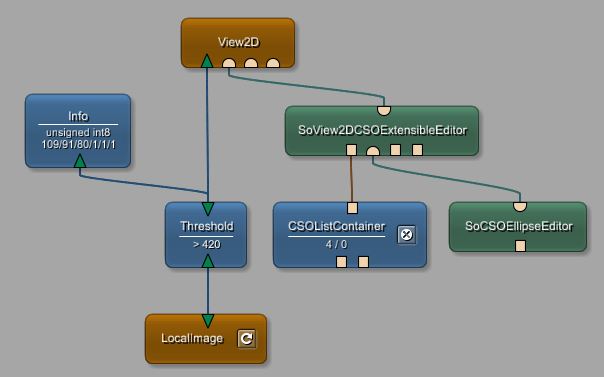
Connectors can exist in a semi-transparent design. This is the case if a connector is hidden but connected. An example for a module with Inventor inputs that can be hidden is the View2D modules (see Section 3.7.2, “Additional Inputs”).

Figure 3.2. View2D with Connected "Invisible" Open Inventor Connector

View2D with Connected "Invisible" Open Inventor Connector

Table 3.4. Connections

TypeLookCharacteristics
Data connections (connector connections)The direct connection between connectors. Depending on which connectors are involved, the connection is rendered in a different color: blue for ML, green for Open Inventor, brown for Base.
Parameter connections (field connections)Connections created by connecting parameter fields within or between modules. For more information, see Section 3.8.2, “Connections Context Menus”.

Data connections are established by clicking on a connector and drawing the connection to the other connector. Only connectors of the same kind can be connected.

[Note]Note

Base connectors can have different field types; connecting these incompatible connectors is possible but results in the connection being drawn in red. For more information on Base connectors, see the Getting Started, chapter A Note on Base Types Checks.

Parameter connections are established similarly, by clicking on a field on a panel and drawing the connection to another field (on the same panel or another one). For details on parameter connections, see the Getting Started, chapter Parameter Connection for Synchronization.

Both connection types can be moved between connectors/fields by clicking on the connected connector/field and pressing SHIFT while dragging it to another connector/field. In case of parameter connections, other connected elements will be updated accordingly.

[Tip]Tip

For further connection-related shortcuts, see Section 23.3, “Module and Network Handling — Shortcuts and Tricks (All Platforms)”.

[Tip]Tip

To abort the interactive establishing and removing of connections between modules (and the horizontal moving of connections), press ESC. Alternatively, abort the establishing by drawing the connection a) to a connector of the wrong type (will be displayed in red) or b) back to the output connector and release the mouse. The new connection will not be drawn, and no existing connections will be removed.