| Chapter 22. Search in Network | ||
|---|---|---|
 |  | |
| Chapter 22. Search in Network | ||
|---|---|---|
| | | |
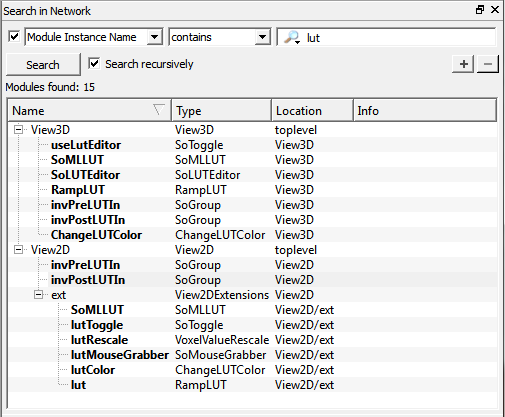
Searches for some named item in the current network. Optionally, the search is applied recursively so that it also searches in macro modules.
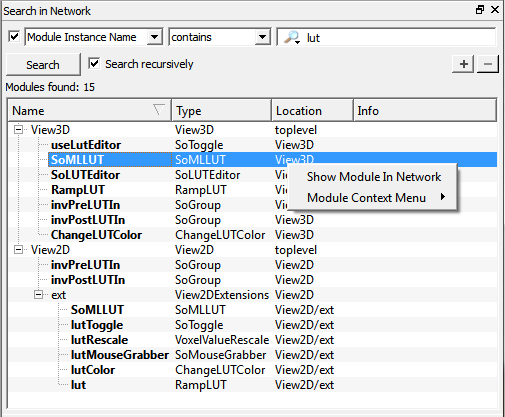
A listed item has a context menu. Its first entry is an option to show the item in the network. If chosen, the network is opened, the module is highlighted, and the highlighted module is centered. Alternatively, a listed item can just be double-clicked to highlight and show it.
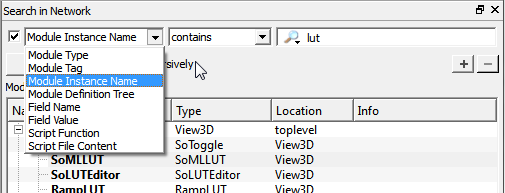
This search can search for different kinds of items. For some of the options, additional choices are available.
Module Type: searches in the modules' type strings
Module Tag: searches in the modules' meta tags
Module Instance Name: searches in the modules' instance name
Module Definition Tree: searches in the modules' definition tree for a tag with the given value
Field Name: searches in the fields' names
Field Value: searches in the fields' values
Script Function: searches in the (Python) scripting functions
Script File Content: searches in the module's GUI definition files
© 2023 MeVis Medical Solutions AG
| | | |
| Chapter 21. Scripting Assistant |  | Chapter 23. Search in Documentation |